Pi-Hole is a fantastic ad-blocking software that can run on a Raspberry Pi or pretty much any other Linux or Windows machine. Most websites that can detect ad-blocking cannot detect Pi_hole and Pi-Hole protects your entire home network. It acts as a personal DNS server which can block advertising or other objectionable sites from your network using blacklists (similar to OpenDNS but completely configurable by you with unlimited whitelists and blacklists). Once it blocks the sites that are on its blacklist, it hands the DNS search off to a secondary DNS (either your ISP’s or one you designate such as Google’s or OpenDNS), thus providing you a second opportunity to filter.
There are may how-tos out there on how to install Pi-Hole, but this method provides the following advantages:
This post and configuration is based on Tony Lawrence’s setup for synology. It uses the Macvlan network driver to provide the Pi-hole server an IP address separate from the physical computer on which the container is running.
mkdir -p ~/docker/pihole
cd ~/docker/pihole
wget -O docker-compose.yaml https://geekvisit.com/wp-content/uploads/2020/04/docker-compose.txt
#This is based on http://tonylawrence.com/posts/unix/synology/free-your-synology-ports/
version: '2'

services:
  pihole:
    container_name: pihole
    image: pihole/pihole:latest
    hostname: pihole                       # <-- container's hostname
    domainname: example.home               # <-- domain name of your pihole container
    group_add:
      - www-data
    mac_address:  e2:09:0e:d4:40:66         # <-- replace with a random mac address,

    # The above should be something like e2:09:0e:d4:40:66. This is NOT the physical server.
    # You can use this site to generate a random mac address(pick top number): https://www.hellion.org.uk/cgi-bin/randmac.pl?scope=local&type=unicast

    cap_add:
      - NET_ADMIN
    networks:
      pihole_network:
        ipv4_address: 192.168.0.210         # <-- Replace with an unused ip address on your network to assign to the Pi-hole instance (not ip address of the physical server)
    dns:
      - 127.0.0.1
      - 1.1.1.1      #<-- Replace as secondary DNS - can change to whatever you want, this is Cloudflare
      - 8.8.8.8      #<-- Replace

    ports:
      - 443/tcp
      - 53/tcp
      - 53/udp
      - 67/udp
      - 80/tcp
    environment:
      ServerIP: 192.168.0.210         # <-- Revise to match ipv4_address above)
      VIRTUAL_HOST: pihole.example.home  # <-- Revise to match hostname + domainname)
      WEBPASSWORD: ""                   # <-- Add password (if required)
    restart: unless-stopped
    volumes:
      - ./etc/pihole:/etc/pihole
      - ./etc/dnsmasq.d:/etc/dnsmasq.d
      - ./html/pihole:/var/www/html/pihole
networks:
  pihole_network:
    driver: macvlan
    driver_opts:
      parent: eth0
    ipam:
      config:
        - subnet: 192.168.0.1/24            # <-- Revise 192.168.0.1 to match your gateway
          gateway: 192.168.0.1              # <-- Revise 192.168.0.1 to match your gateway
          ip_range: 192.168.0.211/29        # <-- Revise 192.168.0.X to match Ipv4 address (above) + 1. The 29 is number of ips reserved for DHCP (optional).
cd ~/docker/pihole
mkdir -p ~/docker/pihole/html/pihole
docker-compose pull
id=$(docker create pihole/pihole)
sudo docker cp $id:/var/www/html/pihole ~/docker/pihole/html
docker rm -v $id
docker-compose up -d
docker-compose logs -ft
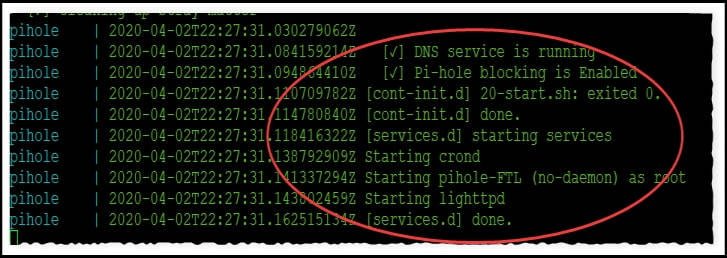
You can omit the second line if you don’t want to see the logs. If you keep it, when you see “Pi-hold blocking is enabled”, “Starting lighttpd” and “[services.d] done.]” the container is up and running:
You can now can cancel out of the logs by hitting “Ctrl-C”.
cd ~/docker/pihole
docker-compose down
Keep in mind that wants this shuts down your network will no longer have a DNS service so your internet won’t work. Make sure you edit your router configuration to replace the Pi-Hole ip with the IP address of another DNS service (your ISP’s, Google’s, or OpenDnS for example).
docker-compose pull; docker-compose up -d
Avoiding Browser Plugins with KeePassXC KeePassXC is a popular free open source password manager. As…
If you've had a Gmail account for years, like I have, at some point you…
Here's a little trick I use to back up my Raspberry Pi without having to…
I try to keep my email inbox fairly clean but I do subscribe to some…
I was recently faced with the dreaded prospect of re-installing Windows 10. While the standard…
Pi-Hole and Upstream DNS Providers Pi-hole is an excellent whole-home, self-hosted ad blocker and DNS…



View Comments
Hello and thank you for your guide!
I am running this on my debian server x64.
I have setup the MacVlan to 10.0.0.2 while the server itself has 10.0.0.3 (Static)
Pihole is running as DHCP and all clients are showing up. but there is no way I can reach the server (10.0.0.3) via the hostname (Ok via IP)
I tried to add the server as DNS name in pihole webgui but it's not working
ping: cannot resolve server.lan: Unknown host
ping: cannot resolve server: Unknown host
Do you have any idea?
I just make the Pihole box a static ip and use the internal IP address.
But if you need to use domain names, in Pihole dashboarrd, try going to Settings->DNS, to Advanced DNS settings at bottom. Read the Note on "Conditional Forwarding" stating that "If not configured as your DHCP server, Pi-hole typically won't be able to determine the names of devices on your local network." Try either using PiHole as your DHCP server OR try conditional forwarding, as it explains: "One solution for this is to configure Pi-hole to forward these requests to your DHCP server (most likely your router), but only for devices on your home network. To configure this we will need to know the IP address of your DHCP server and which addresses belong to your local network. Exemplary input is given below as placeholder in the text boxes (if empty)."
Just experimenting with this. I found that adding the host name and associated IP address to Local DNS records in Pihole (Dashboard Menu->Local DNS->DNS Records) does indeed work if you add a "." (dot) after the domain name.
For example if "pihole" is set to "192.168.0.43" on your network, then "pihole." will resolve.
Also try the condtitional forwarding in my prior comment and make sure that your router also has a default domain name set. Try with and without the domain name (e.g., if "lan" is default domain, try pihole.lan". Just adding the dot does appear to indeed work though if you add it to the pihole's Local DNS Records.
Hi...
I have been trying to apply this macvlan approach with an Ubuntu 18.04 desktop, as docker host.
I tried both your, as well as tonylawrence.com code for synology. Neither works!
No DNS resolution; no access to DNS configuration web API.
'ifconfig' does not show the configured ServerIP/ipv4_address or MAC address in any interface, nor does 'ip link'.
I also tried the variant of macvlan network, the 802.1q trunked macvlan network. With this, 'ifconfig' shows a new network (sub)interface, but still no IP or MAC address is set; and no connectivity, as in the former case.
It looked really good, but it doesn't work...
PS:
Docker version 20.10.5, build 55c4c88
Docker Pi-Hole v4.2.2
I'm not sure, sounds like a gateway/DHCP issue with the machine itself ? Make sure the server itself has internet access before testing the Pihole container. Make sure /etc/resolv.conf has correct nameserver (try 8.8.8.8).