Pi-hole & Unlimited Whitelist for OpenDNS, Cleanbrowsing, Etc.


Photo by Firmbee.com on unsplash

Photo by Firmbee.com on unsplash

Pi-Hole and Upstream DNS Providers

Pi-hole is an excellent whole-home, self-hosted ad blocker and DNS filtering tool. For an easy way to install Pi-Hole see my post on installing Pi-hole using Docker.

Pi-hole intercepts every request for a website from your home network (including any devices on WIFI) and checks whether the website is on a “bad list” (ad engine, malware, adult site, etc.). If it is, then the site is blocked. If it isn’t, the request is forwarded to a filtered or unfiltered name server which you specify (such as Google’s, OpenDNS or Cleanbrowsing.org’s). Your upstream DNS provider can be unfiltered (like Google’s 8.8.8.8) or filtered (like Cleanbrowsing’s Family Filter 185.228.168.168). The result is a very ad-free (and if you choose, filtered) browsing experience both on mobile and desktop without having to install any software on any devices.

DNS settings page on the Pi-hole admin page (Settings->DNS)

Whitelisting Filtered Upstream DNS Servers Like OpenDNS and Cleanbrowsing

There are free “upstream” DNS providers that provide free filtering for malware and other harmful sites but don’t provide (at least on free accounts) very many options to white list sites that you may want to allow on your network. For example, Cleanbrowsing blocks reddit on its Family Filter (for good reason, IMO, as reddit contains a lot of objectionable material). Still, if you want to block adult sites, but permit reddit in order to access the tech forums, you won’t be able to do that through the Pi-hole admin interface or the free Cleanbrowsing Family Filter.

In addition, Pi-hole’s admin interface only allows you to specify upstream DNS providers for every request, so at least as of the current version there is no way to send different domains to different upstream DNS providers.

What to do? If you whitelist the domain using Pi-hole’s white-list settings, the domain will still be blocked as it is only whitelisted on the local Pi-hole name server, not on the upstream provider. Pi-hole will see the domain, not check it against it’s block lists (i.e., gravity lists) and send it on to the upstream provider only for the upstream provider to block the domain.

SOLUTION: Tell Pi-Hole to Send Whitelisted Domains to an Unfiltered Upstream DNS

By manually editing a configuration file on your Pi-hole server, you can send certain domains to any upstream DNS provider you want, rather than the default upstream provider in your DNS settings. That way you can effectively whitelist as many domains as you wish.

Example: Whitelisting Domain for Upstream Name Server

Here’s an example. On your Pi-hole server, open a new configuration file named “bypass_upstream_dns.conf” (or any other name you wish provided you use .conf as an extension), in the /etc/dnsmasq.d/ directory. If you installed Pi-hole using my Docker instructions, the etc directory is located in the directory where your docker-compose.yml file is located.

Now simply specify the domain you wish to white list and the IP address of an unfiltered name server (in this example, Google’s) using the following format:

Exit and restart your Pi-Hole server. Using docker-compose this would be:

Credit for this trick goes to this thread in the pi-hole forums.
Need to Move Your Router’s Existing DHCP IP Reservations to A New Router ? Try Uproot – a Static Lease Conversion Utility

Photo By tephen Phillips - Hostreviews.co.uk's profile Stephen Phillips - Hostreviews.co.uk

Photo By tephen Phillips - Hostreviews.co.uk's profile Stephen Phillips - Hostreviews.co.uk

I just released a new open source project on github called Uproot.

What is Uproot ?

Uproot (command uprt) is a multi-platform (Windows, Linux, MAC) command line utility that converts your router’s static lease mappings from one format to another. It currently supports the following formats:

  • DD-WRT
  • Mikrotik RouterOS
  • OPNSense
  • OpenWrt
  • pfSense
  • json
  • csv

I decided to build Uproot after purchasing a Mikrotik router and faced the daunting task of transferring many static leases over to the new router from my old DD-Wrt router.

Download Uprt

Download

All feedback is welcome.

Usage

I spent a lot of time documenting usage. Because the information for exporting and importing static leases for all the various formats was hard to come by, I also wrote up detailed walk-throughs with screenshots and videos of exporting and importing all the router formats. Now this information is all in one place.

The actual usage of Uproot for a straight conversion is very simple:

For a full list of options, simply type

Demo Converting Static Lease in CSV Format into 6 formats Using Uprt

Using pfSense on VirtualBox for Windows using only One Virtual Machine

Network Router by thomas jensen on unsplash

pfSense on VirtualBox

I’ve been experimenting with pfSense (firewall software you can use for DIY routers). Following this guide by Get Labs Done, I was able to install pfSense in a Virtualbox virtual machine in Windows 10 (with hypervisor disabled). If you do this, keep in mind this should be done purely for development/testing purposes and not to use as your network’s gateway.

Setting up Two Networks on VirtualBox

Essentially, you install pfSense as a virtual machine with two network cards, the first being a bridge to your physical network, and the second being internal.

When booted pfSense will detect both cards, the “WAN” side (side facing the internet) will be your actual physical network (i.e., behind my home physical router, so something like 192.168.X.X), while the “Lan Side” will be a Vlan (in the example 10.1.1.1/24) where you can connect clients. You then install a second virtual machine and set that up as having a gateway as being the pfSense virtual router 10.1.1.1 on that network. You run both virtual machines simultaneously which can be a load on your host PC.

SSH and Browser Access to pfSense From Windows Host

What stumped me was how to SSH into the box from my Windows host machine or even to access from the host the pfSense web interface. The Get Labs Done tutorial has you accessing pfSense VM through the browser on the second VM using the 10.1.1.1 network.

After opening up the SSH port through the command line on the pfSense box using “ufw allow 22”, ssh was still blocked. I then realized pfSense itself must be blocking it.

Disable the pfSense Private Network Block

The secret to enabling SSH from your host to pfSense is to disable pfSense’s blocked private network firewall rule (I’m sure there are security reasons for this rule, but as mentioned above, do this only on a development setup not if you are actually using the pfSense install for a network gateway):

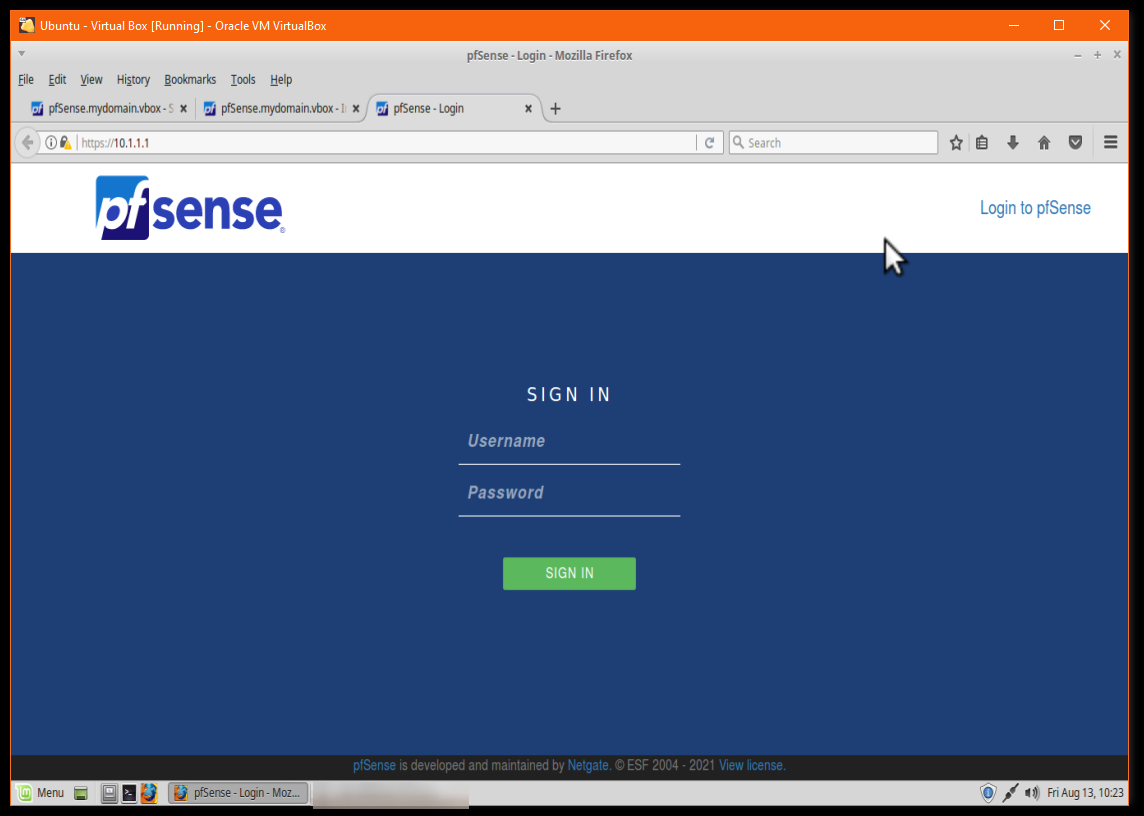
  1. After setting up pfSense using this guide, log into pfSense using the browser in the second VM you setup using the guide which is on the Lan 10.1.1.1 sdie of the network:

  2. Select Interfaces->Wan

  3. Scroll down to “Reserved Networks” and uncheck “Block Private Networks and Loopback Addresses”. Save.

  4. That’s it. You should now be able to ssh into the WAN Side (i.e., 192.168.X.X) at the ip address shown in the pfSense menu:

  5. In addition, on your Windows host, you can go to the same address using your browser (https://192.168.0.19 in my case) and logging into pfsense.
  6. After setting this up, I was able to make my first pfSense VM instance headless, and shutdown my second VM instance to lighten the load on my PC, while still having full access to pfSense using my browser and ssh.